The Mac dictation shortcut: which key to press and how to change it
Short answer: the Mac dictation shortcut is the Microphone key (F5 on recent MacBook Air models) or the shortcut set in System Settings > Keyboard > Dictation > Shortcut, for example pressing fn twice. Apple also lists Fn-D, and Edit > Start Dictation works in any app. To stop, press Escape, the Microphone key, or the shortcut again. If the fn key opens emoji instead, change the "Press fn key to" setting.
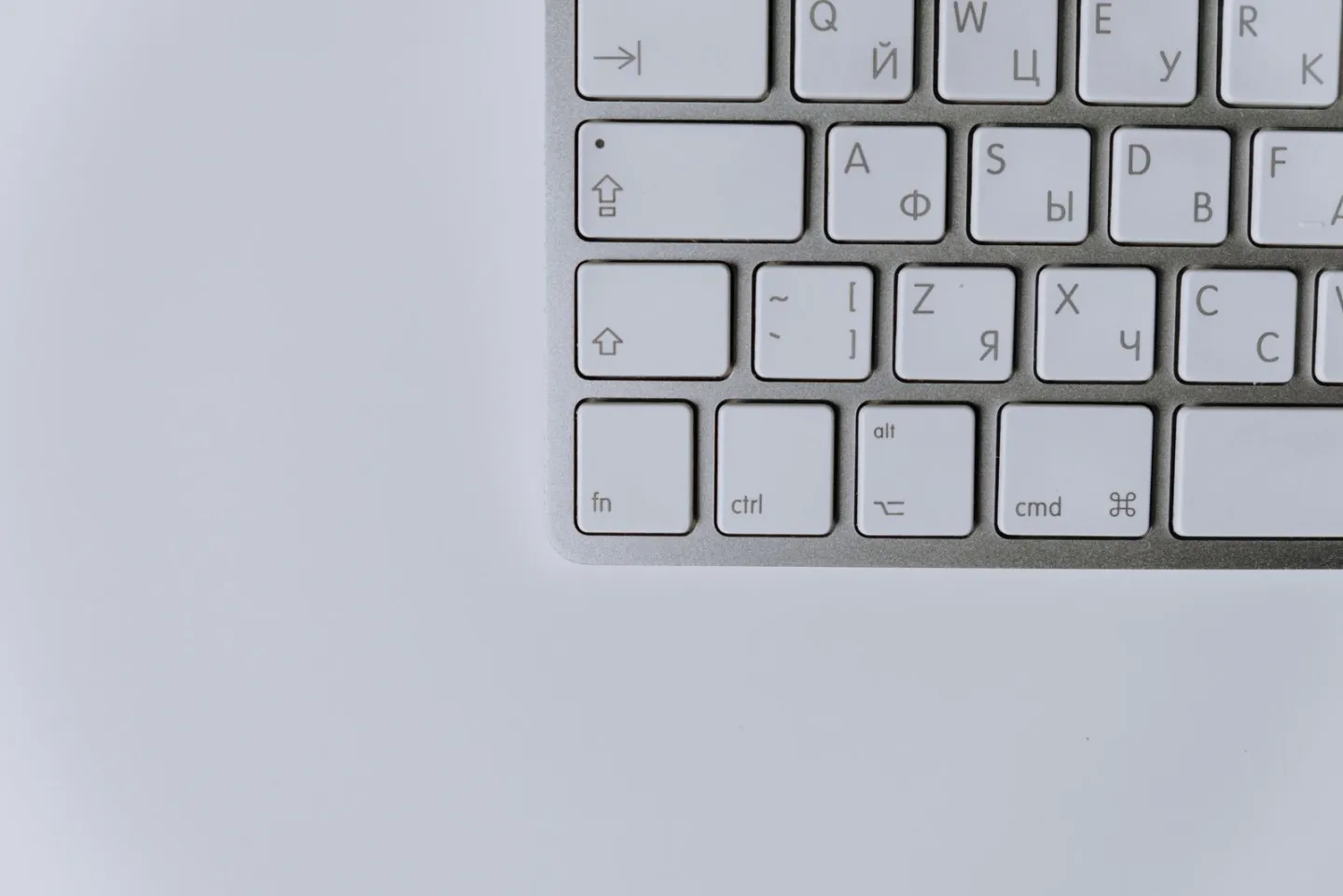
Each shortcut, what it does and where to set it
All paths start in System Settings, in the Apple menu. Dictation must be turned on in Keyboard > Dictation.
| Shortcut | What it does | Where to set it |
|---|---|---|
| Microphone key (F5) | A press starts or stops dictation. A press and hold opens Siri. | Nothing to set. If the F keys work as standard function keys: fn-F5 |
| Press fn (or the Globe key) twice | Starts dictation | Keyboard > Dictation > Shortcut, or Keyboard > "Press fn key to" |
| Press Control or Command twice | Starts dictation | Keyboard > Dictation > Shortcut |
| Custom shortcut, for example Option-Z | Starts or stops dictation | Keyboard > Dictation > Shortcut > Customize… |
| Fn-D | Starts or stops dictation | System shortcut listed by Apple, no setting |
| Edit > Start Dictation | Starts dictation without the keyboard | The app's Edit menu |
| Escape | Stops dictation | Nothing to set |
| Hold fn with HoldTalk | Listens while the key is down, types when you let go | HoldTalk settings |
Which key starts dictation on a Mac?
It depends on your keyboard. On recent MacBook Air models, the F5 key shows a microphone, and Apple describes it like this: press it to start dictation, press and hold it to open Siri. On a keyboard without a Microphone key, the shortcut set in Keyboard > Dictation is what counts, and the best-known one is pressing fn twice.
Two more ways work whatever your setting. In its list of Mac keyboard shortcuts, Apple gives Fn-D to start or stop dictation. And in any app, Edit > Start Dictation starts it too. Use it to check that dictation works before you blame the shortcut.
Where do you change the dictation shortcut?
- Choose Apple menu > System Settings, then click Keyboard in the sidebar.
- Scroll down to the Dictation section. If Dictation is off, turn it on.
- Click the Shortcut menu and pick an option.
On my Mac running macOS 27.0.1, this menu has these options, depending on the keyboard:
- Off
- Press Control Key Twice
- Press Fn (Function) Key Twice, or the Globe key on keyboards that have one
- Press Either Command Key Twice
- Press Right Command Key Twice
- Press Left Command Key Twice
- Press Microphone Key, on keyboards that have one
- Customize…
Apple's help for macOS Tahoe 26 describes the same path and the same Shortcut menu.
How do you set a custom dictation shortcut?
In the Shortcut menu, choose Customize…, then press the keys you want. Apple's example is Option-Z. The same shortcut then starts and stops dictation.
Pick a key combination that none of your apps already use. If two actions share a shortcut, they get in each other's way.
What does the fn or Globe key setting do?
Higher up on the Keyboard page, one menu decides what happens when you press the fn key. It's called "Press fn key to", or it shows the Globe symbol instead of "fn" on newer keyboards. It has four options:
- Change Input Source: switches between keyboard layouts.
- Show Emoji & Symbols: opens the Character Viewer.
- Start Dictation (Press fn Twice): starts dictation when you press the key twice.
- Do Nothing: the key does nothing on its own.
The two menus are linked. Apple warns that choosing a dictation shortcut can change this setting automatically: if you pick "Press Fn (Function) Key Twice" in Dictation > Shortcut, the fn key setting changes to Start Dictation. And if fn opens emoji, this menu is set to Show Emoji & Symbols.
How do you stop dictation?
Three keys stop it: Escape, the Microphone key if your keyboard has one, or the dictation shortcut again. If you do nothing, it stops on its own after 30 seconds without speech. As long as you keep talking, Apple sets no time limit.
The shortcut does nothing: what should you check?
- Dictation is off. Turn it on in Keyboard > Dictation.
- F5 acts as an F key. If "Use F1, F2, etc. keys as standard function keys" is on, the Microphone key no longer dictates on its own. Press fn-F5, or turn the option off in Keyboard > Keyboard Shortcuts > Function Keys.
- Voice Control is on. macOS then shows "Dictation is not available while Voice Control is enabled."
- Another app catches the key. Dictation apps and keyboard tools can listen to fn before macOS does. Quit them for a moment and try again.
If dictation starts but types nothing, the shortcut is no longer the problem. Follow the Mac dictation troubleshooting guide, which covers the microphone, the language and restrictions.
Hold a key instead of pressing it twice
Apple's dictation takes two actions: one press to start and one to stop. If you forget the second one, the microphone stays open until 30 seconds of silence. For short sentences all day long, that back and forth adds up.
I built HoldTalk for a single action: hold the fn key, speak, then let go. The text appears where your cursor is, in any app. On a keyboard, people type 52 words per minute on average (Dhakal et al., CHI 2018), and speech runs at about 130, so you go roughly twice as fast.
Transcription runs on your Mac with Apple's speech engine. There's no server and no account, and the audio isn't saved. To keep fn from also starting Apple's dictation or the emoji viewer, set "Press fn key to" to Do Nothing, or pick another key in HoldTalk.
The free version covers 2,000 words a week, and you get 7 days of Pro at first launch, with no card and no account. Pro costs €29 once, with a license key that works on 2 Macs.
The limits are clear: HoldTalk only runs on Apple silicon Macs with macOS 26 or later, it has no voice commands to edit text, and quality depends on Apple's engine. To compare it with other apps, see the best dictation apps for Mac.
Dictate by holding fn
Hold fn, speak, let go: the text appears at your cursor, in any app. Your voice stays on your Mac. Free up to 2,000 words a week, with no account.
For Apple silicon Macs running macOS 26 or later.
Frequently asked questions
What is the keyboard shortcut for dictation on a Mac?
If your keyboard has a Microphone key (F5 on recent MacBook Air models), press it. If not, use the shortcut set in System Settings > Keyboard > Dictation > Shortcut, for example pressing fn twice. Apple also lists Fn-D to start or stop dictation.
How do I change the dictation shortcut?
Open System Settings > Keyboard, scroll down to Dictation and click the Shortcut menu. Pick an option from the list, or choose Customize… and press the keys you want, for example Option-Z.
How do I stop dictation on a Mac?
Press the Escape key, the Microphone key if your keyboard has one, or the dictation shortcut again. Dictation also stops on its own after 30 seconds without speech.
Why does pressing fn twice open emoji?
The "Press fn key to" setting is set to Show Emoji & Symbols. In System Settings > Keyboard, choose Start Dictation (Press fn Twice), or pick that shortcut in Dictation > Shortcut.
Why doesn't the F5 Microphone key start dictation?
If "Use F1, F2, etc. keys as standard function keys" is on, F5 acts as a plain F key. Press fn-F5, or turn the option off in Keyboard > Keyboard Shortcuts > Function Keys.
Can I dictate by holding a key on a Mac?
The shortcuts Apple documents start dictation with one press and stop it with another. HoldTalk, the app I built, works by holding: you hold fn, speak, and the text appears at the cursor when you let go.
Sources
- Apple, Dictate messages and documents on Mac (macOS Tahoe 26, same text for macOS 27), checked on November 11, 2026.
- Apple, Keyboard settings on Mac, checked on November 11, 2026.
- Apple, Mac keyboard shortcuts (Fn-D), checked on November 11, 2026.
- Apple, Magic Keyboard for MacBook Air (Dictation/Siri F5 key), checked on November 11, 2026.
- Apple, How to use the function keys on your Mac, checked on November 11, 2026.
- Shortcut menu and fn key labels read in System Settings on macOS 27.0.1, on November 11, 2026.
- Dhakal, Feit, Kristensson and Oulasvirta, Observations on Typing from 136 Million Keystrokes, CHI 2018.
See also: the guide to dictation on Mac and Mac dictation not working.